



A dog breed identification app can turn a clear photo into a list of breeds your dog resembles. Pick PetMira if you use an iPhone and want breed suggestions alongside everyday care tools. Dog Scanner is a dedicated option for iPhone and Android, Dog ID offers a camera-first scan on Apple devices, Dog breeds – Smart Identifier pairs an Android scanner with a breed reference, and Dog Breed Identifier Scener lets you save scans to individual profiles. These apps evaluate what a camera can see. Use their suggestions as leads to check against what you know about the dog.
Choose an app by what you want to do next
App | Where to start | Good fit when you need |
|---|---|---|
PetMira | iPhone | Breed clues alongside a photo care log |
Dog Scanner by Siwalu | iPhone or Android | A dedicated scanner and breed reference |
Dog ID by Allen Tom | iPhone or iPad | A straightforward camera-first guess |
Dog breeds – Smart Identifier | Android | An identifier with a breed reference to browse |
Dog Breed Identifier Scener | Apple App Store | A library of scanned dog profiles |
If your only question is “what dog looks like this?” a focused scanner is enough. If you are researching a dog you live with, consider whether you will want to keep using the app once the novelty of the label wears off. An app with a reference library helps you compare ears, coat, and proportions. An app with a pet profile is useful when the photo is just one part of caring for your dog.
PetMira for owners who want the scan to lead somewhere
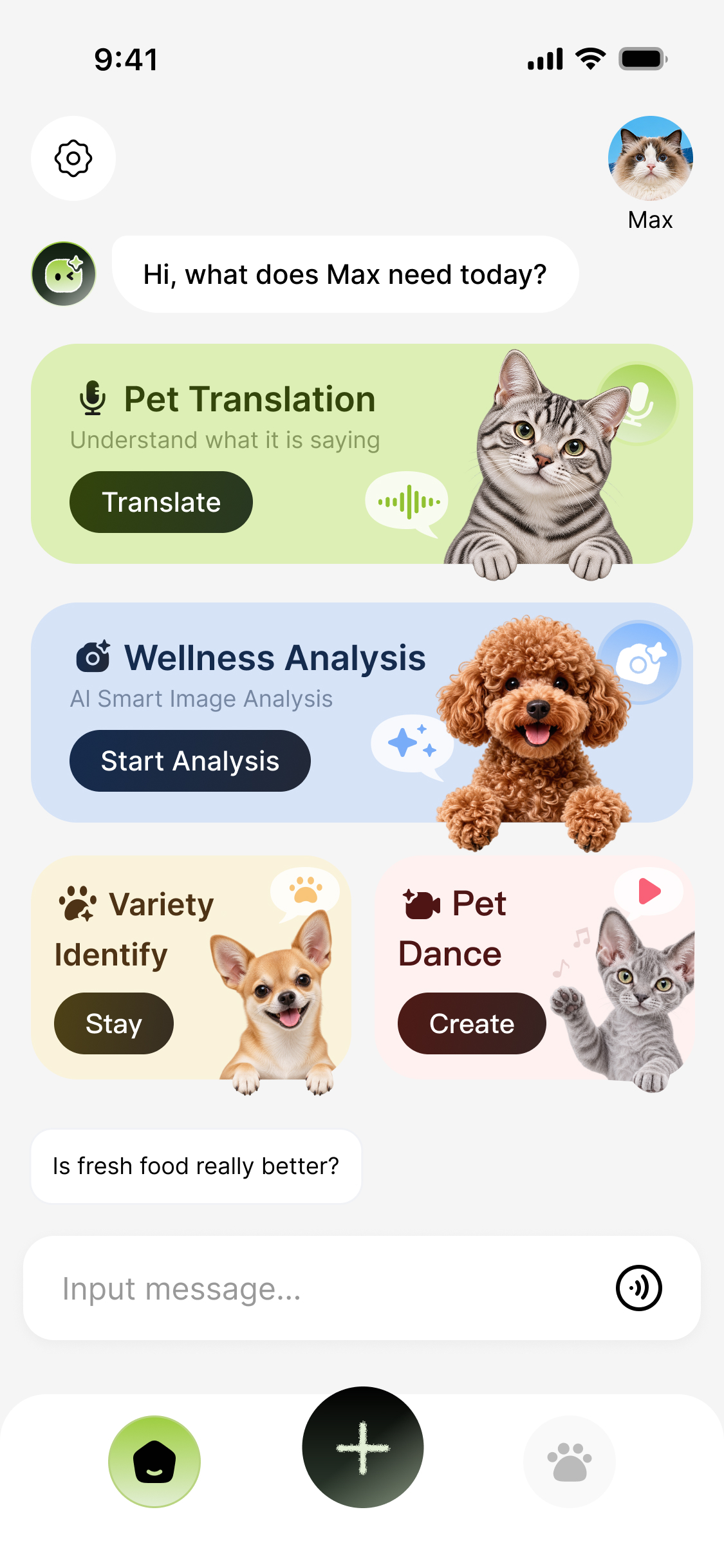
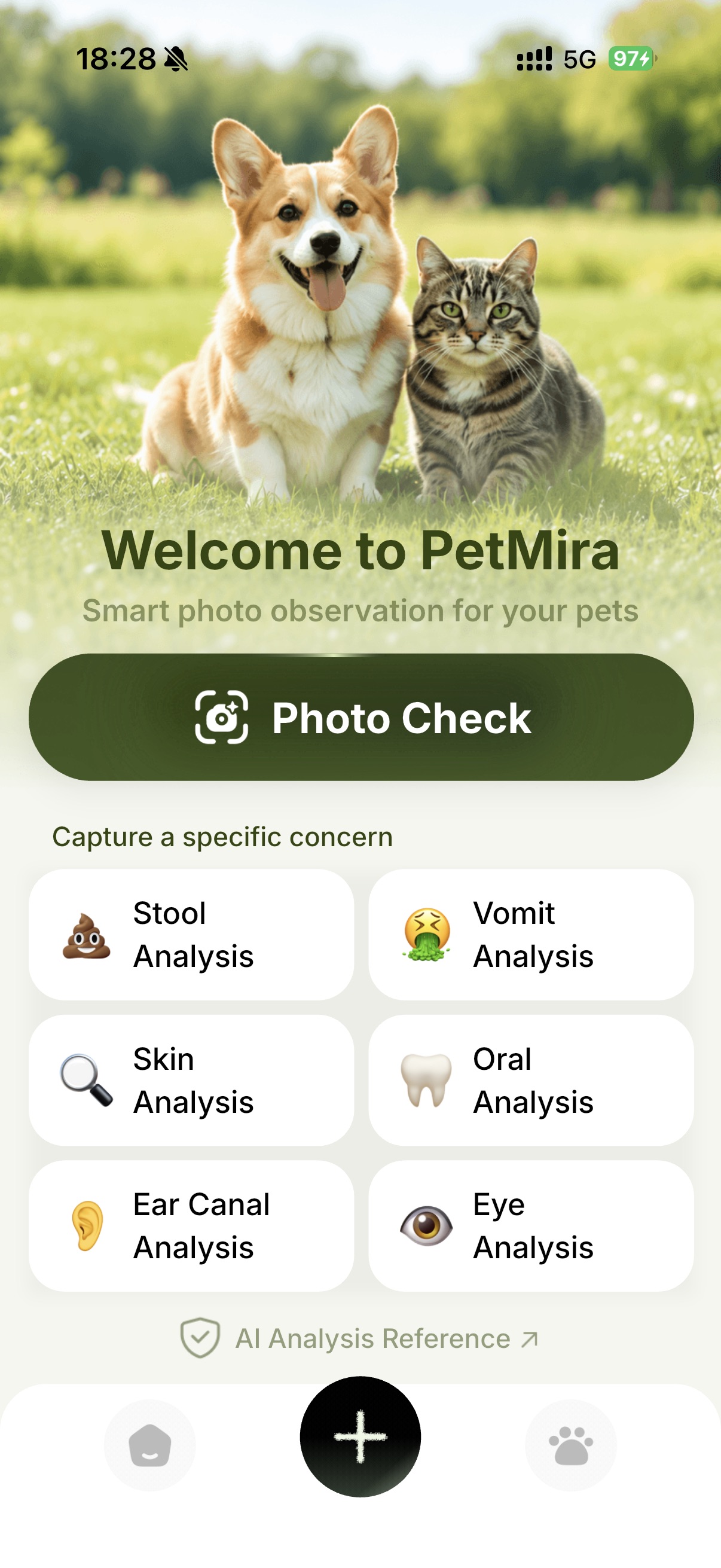
Take a new photo or upload one in PetMira’s iPhone app. The breed identification feature analyzes visible characteristics and suggests possible breeds with information you can read. For example, if an adoption photo prompts a spaniel suggestion, open the suggested breed and compare the adult size, muzzle, ears, and coat with what you can observe. Keep feeding and walk notes in your usual log and treat the suggested breed as a separate clue. This leaves you free to reconsider it if a later photo returns a different result.
The main trade-off is that this is a broader care app. If you need only a fast scan on Android, choose an Android app verified on Google Play instead. Use the store listing and any in-app purchase screen to check how much ongoing access costs before committing.
Dog Scanner for a dedicated scanner on either platform
Siwalu’s Dog Scanner supports taking a photo or choosing one from the gallery. Its developer also describes a breed reference that can be browsed without taking a new photo. That is useful if you are deciding between two candidates and want to examine examples before rescanning. Dedicated breed coverage may make it faster to explore an unfamiliar label. The total number of breeds a developer lists tells you about its reference catalog. It does not measure how often the app gets an undocumented dog right.
The developer describes optional features including ad removal and an offline mode. If either matters for a shelter, travel, or field setting, check which capabilities your store version and plan actually include. Treat social sharing as a separate decision from scanning.
Dog ID for a quick Apple-device scan
Dog ID’s listing describes a computer-vision scan from your camera, with support for images of purebred and mixed dogs. It fits a simple scene such as meeting a neighbor’s dog and wanting a few ideas to look up later. Ask the owner before photographing their dog. A simple camera workflow can be easier for a first pass, but a quick result without independent corroboration leaves uncertainty exactly where it started. If you want a long-running care profile, choose a tool that explicitly offers one.
Smart Identifier for Android users who want a reference beside the scan
The Google Play listing for Dog breeds – Smart Identifier combines a dog reference with photo identification. Its useful role is giving you another place to look up names that were unfamiliar before the scan. For example, if a dog’s long body has prompted several guesses, compare the profile information with its adult size and leg proportions. Verify the listing is by the intended developer before installing, since several stores have similar names. Check access and permissions before importing an image, particularly if you are scanning a photograph you did not take.
Dog Breed Identifier Scener for organizing past scans
Scener’s Apple App Store listing describes profile-based saving alongside scan results and breed information. Consider it when the problem is remembering which image and label went with which dog, for example when you compare different photos of dogs you have permission to photograph. Its listing describes automated care suggestions, so keep any recommendation separate from guidance about the individual dog. The app can organize what it said on an earlier day. Reopening a report and finding the same guess shows that the app retained it, not that anyone verified the dog’s history. Compare its profile tools with PetMira’s photo care log if you want a place for pictures beyond the original scan.
Take two photos that test the suggestion
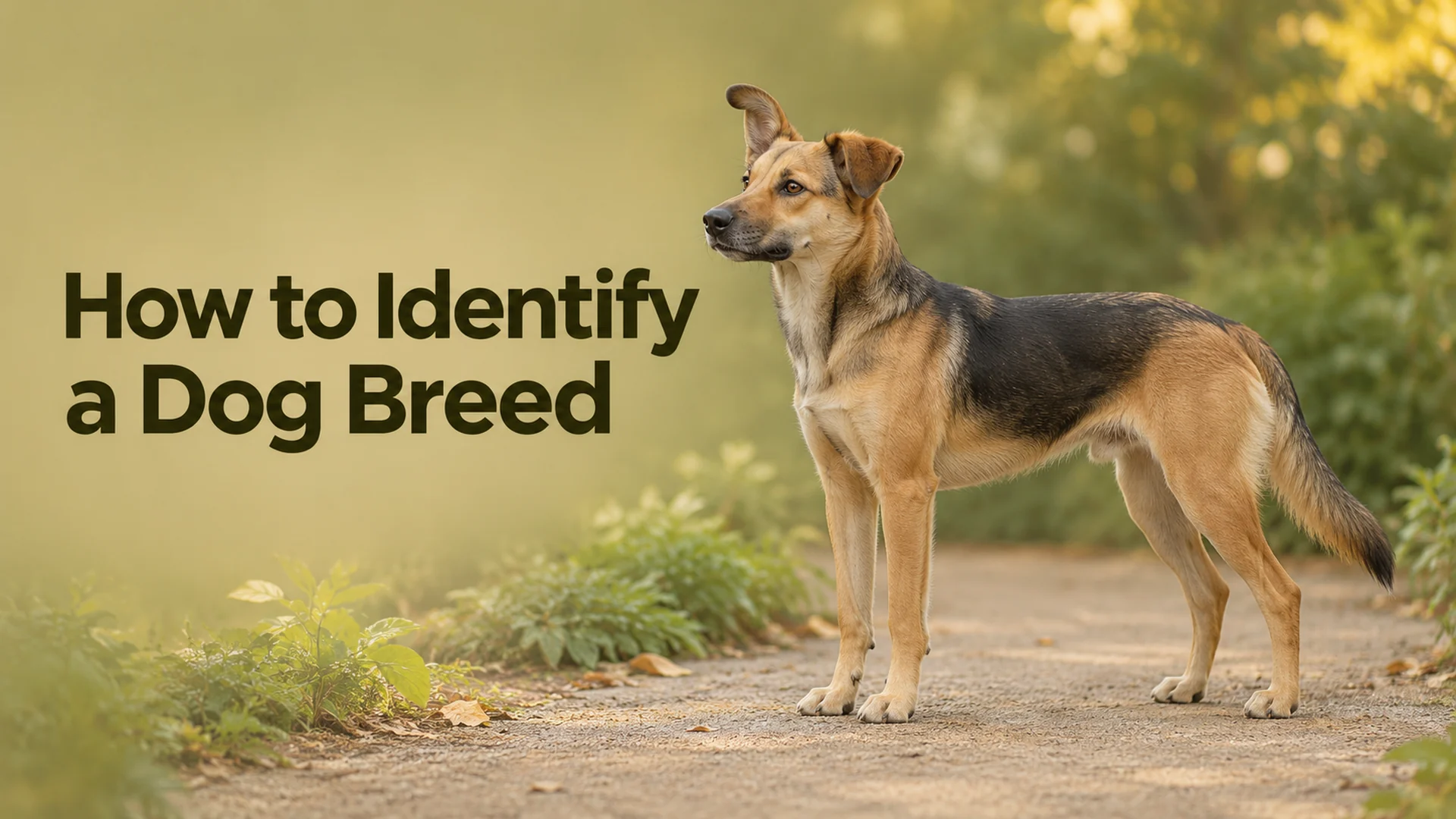
Start with a relaxed picture of one dog at a time. For the first photo, stand far enough away to include the feet and tail in an eye-level side view. This gives a model more of the proportions than a close-up of the nose. For the second, move in front and include ears, chest, and most of the muzzle without leaning over the dog. Use even light and crop out background animals, faces, and identifying details. Pick an angle you can get safely without moving an unfamiliar dog.
Scan both photos separately. If the two results suggest similar-looking breeds, compare the common visible features first. You might be seeing upright ears and a narrow head rather than clear evidence of one particular shepherd breed. If one photo says shepherd and the other says terrier, ask which distinguishing features each image actually showed. An uncertain result is useful when it stops you from entering a confident but unsupported label in an adoption description.
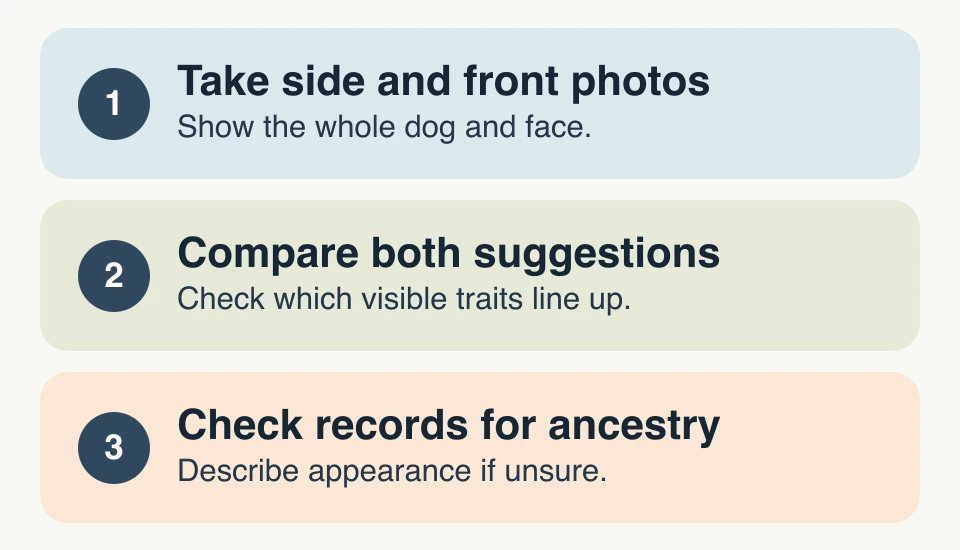
Keep scores out of the breed field A displayed score is the app’s interpretation of its own image match. Before putting a label in a profile or form, check whether you have a record that actually establishes the breed.
Know when to step away from the camera
For curiosity or photo organization, “looks like a spaniel” may be all you need. To understand family history, check adoption notes, prior owner information, or registration records. If an ancestry estimate would change a decision, compare reputable dog DNA tests and find out how their reference panels and confidence limits work. Use our dog breed identification guide to compare records, visual traits, and DNA evidence for that next step.
To decide how to walk, exercise, or introduce a dog, start from its current behavior and the people who know it. A dog that gets tense near passing bikes needs a plan for that observed response, even if the app suggests a breed generally described as easygoing. For a veterinary or housing document, ask the organization what information it accepts. If your dog’s breed is unknown, record that honestly and add a physical description if it helps. Use those observations with the measurable traits that matter for daily care.
The takeaway
Choose a dog breed identifier that fits the next step you actually have in mind. Take a side view and a front view, read the result as a short list, and check the underlying evidence if the label will matter. A photo app earns its place when it gives you something useful to investigate without asking you to trust a guess as a record.
Explore the dog in your photo
Try a breed photo in PetMira
On iPhone, take or upload a clear dog photo to see possible breed matches and read about the features your dog may share with them.
 Start with a clear side view
- Explore possible visual matches
A visual match is a clue to investigate. Ancestry needs separate evidence.
Download iOS App